> For the complete documentation index, see [llms.txt](https://docs.spectralink.net/llms.txt). Markdown versions of documentation pages are available by appending `.md` to page URLs; this page is available as [Markdown](https://docs.spectralink.net/amie-essentials/release-notes/sam-1-7-1.md).
# SAM 1.7.1
SAM Version: 1.7.1.xxx.1067
R1.7.1 is a patch designed to address a specific and limited problem encountered with R1.7.0. It replaces R1.7.0, which is no longer available.
For use with Versity versions:
* Versity 92 Series R1.5 using Android 10
* Versity 95/96 Series R2.5 using Android 10
## Upgrading to SAM 1.7.1
### Upgrade requirements
* SAM versions 1.4.0 through 1.7.0 may be upgraded to SAM 1.7.1
### Upgrading to SAM 1.7.1
{% hint style="warning" %}
**Take a snapshot of the VM prior to upgrading to 1.7.1!**
Before upgrading to SAM 1.7.1, take a snapshot of the VM, in case you need to roll back from an upgrade failure.
{% endhint %}
{% hint style="info" %}
**SAM server components will be restarted after the upgrade**
Upgrading the SAM software will interrupt the SAM operation while the server restarts, but this has no effect on the attached phones. Your Versity phones will operate as normal while SAM is being upgraded.
{% endhint %}
Before starting the upgrade process, obtain the *artifacts.zip* upgrade file from Spectralink, then follow these steps:
1. Login to SAM, then navigate to the About page. Click the “Browse file” button at the bottom of the page. Navigate to the .zip file location and select the *artifacts.zip* file that you obtained from Spectralink. Monitor the progress bar to verify upload completion.
2. From the console or using SSH to access the VM host, log in (sam/sam). Navigate to the “bin” directory (`cd bin`). Run the upgrade script from the sam account \[“upgrade.sh”].
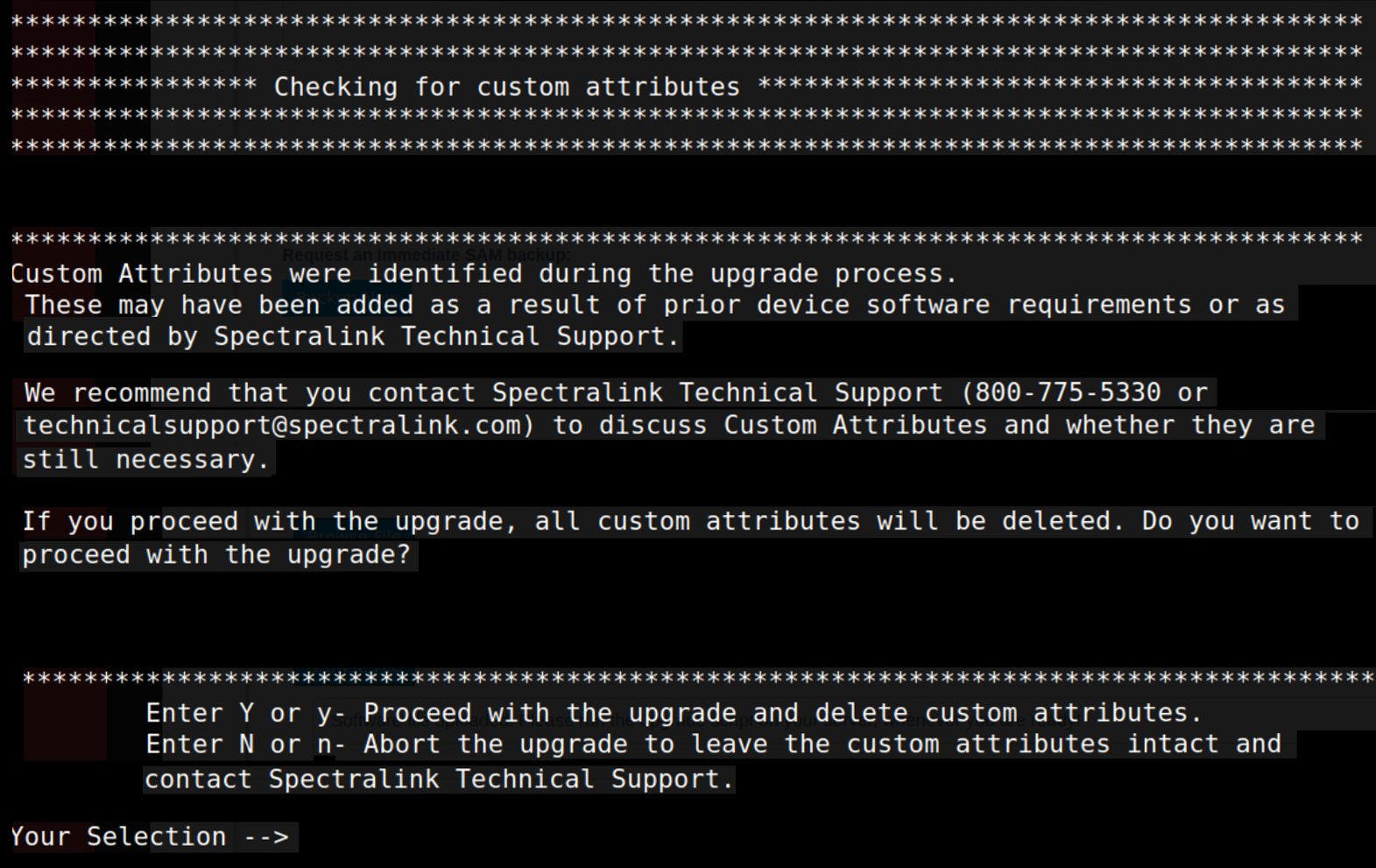
3. In rare cases a SAM configuration might have Custom Attributes, used when an organization has unique requirements that are not part of the standard SAM configuration.
The upgrade script will check for Custom Attributes before it attempts
> the upgrade. If it doesn’t find any, the upgrade will proceed, and you can go to Step 4.
>
> If the upgrade script finds Custom Attributes in your SAM configuration, you’ll be notified in the terminal, and you’ll be asked if you want to proceed with the upgrade.
>
>  {% hint style="danger" %}
**Custom Attributes?**
Spectralink recommends you **abort the upgrade** and contact Spectralink Technical Support (800-775-5330 or ) if you are notified that your configuration has Custom Attributes, because proceeding with the upgrade will permanently delete them! Spectralink Support will help you determine if you still need the Custom Attributes and will walk you through the rest of your upgrade process.
{% endhint %}
If you have Custom Attributes and choose YES to continue with the
> upgrade, **they will be permanently deleted**, the upgrade will proceed, and you can go to Step 4.
>
> If you choose NO the upgrade process will stop and your database and Custom Attributes will remain intact. Contact Spectralink Technical Support (800-775-5330 or ) for further instructions.
1. *If you don’t have Custom Attributes, or if you choose YES to continue the upgrade after being notified you have them:* Monitor the output. Near the end you should see messages saying Tomcat is being restarted.
2. If you have a browser tab open to SAM, click the Logout button at the bottom left, close the tab, and open a new one. This should clear the browser cache. You can also hold the control key and click the browser refresh button to further ensure the cache is cleared.
{% hint style="success" %}
**Take a new VM snapshot after you’ve upgraded to SAM 1.7.1**
Once you’ve confirmed your upgrade to SAM 1.7.1 was successful, and that your data is present and accessible, take a VM snapshot. This is best practice, and will help ensure the integrity of your data for the long term.
{% endhint %}
{% hint style="info" %}
**When restoring from a backup, the backup file must be from the same version of SAM**
A reminder: when restoring your SAM database from a backup, the backup file must be from the same version of SAM as you’re currently running.
For example, if you’re running SAM 1.6, you cannot restore your database using a backup file that was created in SAM 1.5 or 1.4; your backup file must have been created in SAM 1.6.
{% endhint %}
## Known Issues
SAM-997 *When upgrading to SAM 1.7.1 from 1.6 or 1.7.0:* In certain rare group hierarchy configurations a higher-priority group’s empty fields will overwrite (and therefore erase) a lower-priority group’s settings in those fields.
SAM-1004 We are investigating an issue with Auto Generated backup files (files named *backup.zip* created when an administrator changes app configurations in SAM and saves), and have temporarily disabled the ability to download them.\
*Workaround: Manual backups can still be downloaded and used. Create a manual backup by going to the About page and clicking “Backup Now”. Manual backups in SAM are designated as “User Triggered”, and their file names include the date they were created – for example:* backup.2021.04.07-10.18.13.zip\*.\*
SAM-1013 In the Barcode app General settings, while the Decode Session Timeout slider will let you enter any value between 5 and 99, **the value you enter MUST BE an increment of 5** or the handset will stay at the default value.
SAM-1020 Copy Configuration, used to copy device-level settings from one Versity phone to another, is not available in SAM 1.7.1. This functionality will be restored in a future release.\
*Workaround: Manually configure a new device with another device’s settings.*
---
# Agent Instructions
This documentation is published with GitBook. GitBook is the documentation platform designed so that both humans and AI agents can read, navigate, and reason over technical content effectively. Learn more at gitbook.com.
## Querying This Documentation
If you need additional information that is not directly available in this page, you can query the documentation by asking a question.
Perform an HTTP GET request on the following URL with the `ask` and `goal` query parameters:
```
GET https://docs.spectralink.net/amie-essentials/release-notes/sam-1-7-1.md?ask=&goal=
```
`ask` is the immediate question: it should be specific, self-contained, and written in natural language.
`goal` is what the user is ultimately trying to achieve, the reason they need the answer. Sharing it helps GitBook give you a better, more relevant answer. A goal is most helpful when it describes the outcome the user wants rather than restating the question. For example, with `ask=how do I create an API token`, a goal like `automate deployments from our CI pipeline` lets GitBook tailor the answer to that use case.
The response will contain a direct answer to the question and relevant excerpts and sources from the documentation.
Use this mechanism when the answer is not explicitly present in the current page, you need clarification or additional context, or you want to retrieve related documentation sections.
{% hint style="danger" %}
**Custom Attributes?**
Spectralink recommends you **abort the upgrade** and contact Spectralink Technical Support (800-775-5330 or ) if you are notified that your configuration has Custom Attributes, because proceeding with the upgrade will permanently delete them! Spectralink Support will help you determine if you still need the Custom Attributes and will walk you through the rest of your upgrade process.
{% endhint %}
If you have Custom Attributes and choose YES to continue with the
> upgrade, **they will be permanently deleted**, the upgrade will proceed, and you can go to Step 4.
>
> If you choose NO the upgrade process will stop and your database and Custom Attributes will remain intact. Contact Spectralink Technical Support (800-775-5330 or ) for further instructions.
1. *If you don’t have Custom Attributes, or if you choose YES to continue the upgrade after being notified you have them:* Monitor the output. Near the end you should see messages saying Tomcat is being restarted.
2. If you have a browser tab open to SAM, click the Logout button at the bottom left, close the tab, and open a new one. This should clear the browser cache. You can also hold the control key and click the browser refresh button to further ensure the cache is cleared.
{% hint style="success" %}
**Take a new VM snapshot after you’ve upgraded to SAM 1.7.1**
Once you’ve confirmed your upgrade to SAM 1.7.1 was successful, and that your data is present and accessible, take a VM snapshot. This is best practice, and will help ensure the integrity of your data for the long term.
{% endhint %}
{% hint style="info" %}
**When restoring from a backup, the backup file must be from the same version of SAM**
A reminder: when restoring your SAM database from a backup, the backup file must be from the same version of SAM as you’re currently running.
For example, if you’re running SAM 1.6, you cannot restore your database using a backup file that was created in SAM 1.5 or 1.4; your backup file must have been created in SAM 1.6.
{% endhint %}
## Known Issues
SAM-997 *When upgrading to SAM 1.7.1 from 1.6 or 1.7.0:* In certain rare group hierarchy configurations a higher-priority group’s empty fields will overwrite (and therefore erase) a lower-priority group’s settings in those fields.
SAM-1004 We are investigating an issue with Auto Generated backup files (files named *backup.zip* created when an administrator changes app configurations in SAM and saves), and have temporarily disabled the ability to download them.\
*Workaround: Manual backups can still be downloaded and used. Create a manual backup by going to the About page and clicking “Backup Now”. Manual backups in SAM are designated as “User Triggered”, and their file names include the date they were created – for example:* backup.2021.04.07-10.18.13.zip\*.\*
SAM-1013 In the Barcode app General settings, while the Decode Session Timeout slider will let you enter any value between 5 and 99, **the value you enter MUST BE an increment of 5** or the handset will stay at the default value.
SAM-1020 Copy Configuration, used to copy device-level settings from one Versity phone to another, is not available in SAM 1.7.1. This functionality will be restored in a future release.\
*Workaround: Manually configure a new device with another device’s settings.*
---
# Agent Instructions
This documentation is published with GitBook. GitBook is the documentation platform designed so that both humans and AI agents can read, navigate, and reason over technical content effectively. Learn more at gitbook.com.
## Querying This Documentation
If you need additional information that is not directly available in this page, you can query the documentation by asking a question.
Perform an HTTP GET request on the following URL with the `ask` and `goal` query parameters:
```
GET https://docs.spectralink.net/amie-essentials/release-notes/sam-1-7-1.md?ask=&goal=
```
`ask` is the immediate question: it should be specific, self-contained, and written in natural language.
`goal` is what the user is ultimately trying to achieve, the reason they need the answer. Sharing it helps GitBook give you a better, more relevant answer. A goal is most helpful when it describes the outcome the user wants rather than restating the question. For example, with `ask=how do I create an API token`, a goal like `automate deployments from our CI pipeline` lets GitBook tailor the answer to that use case.
The response will contain a direct answer to the question and relevant excerpts and sources from the documentation.
Use this mechanism when the answer is not explicitly present in the current page, you need clarification or additional context, or you want to retrieve related documentation sections.